

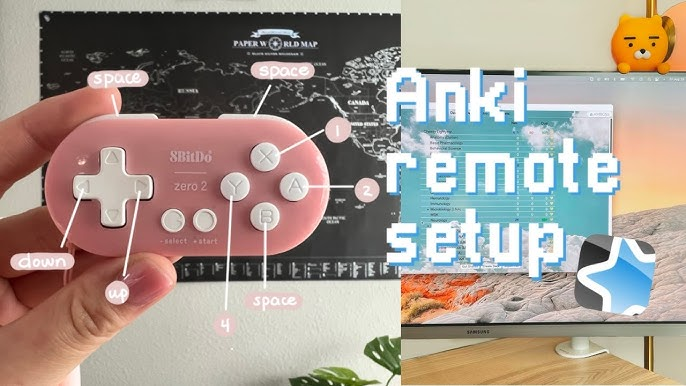
Hold MODI vertically, with the D-pad facing down, unless you have intentionally remapped the buttons for another grip. That is the documented orientation for the MODI Anki remote, and it gives you a consistent starting point before you judge button reach. MODI is an independent Bluetooth accessory for Anki review workflows, not an official Anki product, so orientation guidance comes from MODI documentation rather than Anki, AnkiMobile, or AnkiDroid themselves.
After you connect the remote and choose a layout, validate the grip by pressing the buttons you expect to use during review, one at a time. The goal is not to prove that one hand position is universal; it is to confirm that your chosen orientation, app settings, and button mapping line up. Students evaluating this approach can check one-handed Anki remote for current mode, compatibility, and setup information before changing their review routine.
Documented Orientation
The recommended MODI position is vertical with the D-pad down. In that position, the face buttons sit above the direction pad, and the remote has a clear top and bottom while you hold it. This matters because review controls become easier to remember when the physical layout is stable. If you rotate the remote between sessions, the same thumb movement can point toward a different button, which makes mapping choices harder to audit.
This orientation guidance belongs to the device, not to Anki’s spaced repetition system. Anki, AnkiMobile, and AnkiDroid decide what commands are available inside their own review screens, while MODI sends keyboard-style or gamepad-style inputs depending on the selected mode. Holding the remote vertically does not change Anki’s answer buttons or study behavior. It simply gives you a predictable physical reference while you decide which input should trigger each command.
D-Pad Down
D-pad down means the direction pad should be closest to the lower end of the remote while the face buttons sit higher in your hand. This is the orientation to use when you are comparing default diagrams, testing keybinds, or explaining your setup to someone else. It also keeps left, right, up, and down from becoming ambiguous during troubleshooting, because the direction pad is being interpreted from the same physical viewpoint each time.
If a button seems backward, avoid solving the problem by immediately flipping the remote. First confirm that you are holding it in the documented D-pad-down position, then check whether the app is receiving the input you expected. In AnkiDroid, for example, X-Y-B-A inputs can appear as Y-X-A-B in the menu because of a third-party display mapping issue, even though assigned commands can still function normally after configuration.
Button Reach
Button reach is personal, so treat it as a practical check rather than a claim about comfort or health. With the remote vertical, rest your thumb where it naturally falls, then identify the buttons you can press without changing your grip. For many review layouts, the most important controls are the ones used repeatedly during answer reveal and grading. Those should be assigned where your thumb can reach them consistently without searching.
Do not evaluate reach only by looking at the labels. A layout can make sense on paper and still feel awkward if one command requires shifting the remote every few cards. Press each planned review button while watching the app respond, then repeat the sequence slowly. If your thumb misses a button, that is useful evidence. You can either move the command in the app or add-on, or choose a simpler set of controls.
Mapping Test
A mapping test should be short and deliberate. Open a review screen where you can safely test controls, then press one remote button and observe exactly what happens. Write down the command only if the app response matches the action you intended. Repeat for the next button. This avoids the common mistake of assigning several controls at once, then being unsure which physical button created a wrong answer, replay action, undo command, or navigation movement.
For desktop use, remember that Keyboard Mode includes preset inputs, while Switch Mode is used when you want custom remapping through the optional MODI Anki add-on. On iPhone, iPad, and Android, the standard mobile setup uses Switch Mode because the apps can work with gamepad-style inputs. The orientation test is separate from the connection mode decision: first connect in the right mode for your workflow, then verify reach and mapping in the app.
Desktop Reviews
On desktop Anki, the vertical D-pad-down grip is most useful when you want a stable relationship between MODI’s physical controls and Anki’s keyboard actions. Desktop Anki itself supports common keyboard controls such as Space or Enter to reveal an answer or choose Good, and number keys for answer buttons when those buttons are available. MODI’s Keyboard Mode can use preset inputs for review actions without requiring the optional desktop add-on.
If you install the MODI add-on for custom desktop remapping, keep the same physical orientation while you configure it. Changing both the grip and the mapping at the same time makes mistakes harder to isolate. Configure one button, test it in Anki, and then continue. If the remote connects but remains unresponsive after a fresh pairing, restart the host device and try again before assuming the button layout itself is wrong.
Mobile Reviews
For AnkiMobile and AnkiDroid, orientation still starts with the same vertical D-pad-down position, but the final action list comes from the mobile app. In AnkiMobile, configurable gamepad actions are available when iOS recognizes the controller profile. In AnkiDroid, controls are assigned through the app’s key bind settings. MODI is providing the input; the mobile app decides which review command that input should trigger after you assign it.
Because mobile screens are smaller and often held at the same time as the remote, test reach in the posture you actually use. Hold the phone or tablet as usual, hold MODI vertically, and press the buttons you mapped for reveal, grading, undo, or replay if those actions are part of your setup. If you need to look down before every press, simplify the layout or move high-use commands to easier buttons.
Changing Layouts
If you choose a different orientation for a specific reason, document it for yourself and test every important command again. The documented MODI recommendation remains vertical with D-pad down, so any alternate grip should be treated as a custom layout. That is especially important if you switch between desktop and mobile, because Keyboard Mode and Switch Mode can expose different kinds of input to the device and app you are using.
When moving the remote to another computer, phone, or tablet, or when changing between modes, start by forgetting saved MODI or Anki remote Bluetooth entries and pairing again in the intended mode. Press Home to wake and reconnect in the last-used mode only when you are continuing the same setup. Once the connection is clean, repeat the mapping test with the remote held vertically so orientation, pairing state, and app settings are verified separately.
